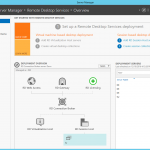
 So I was recently setting up a demo environment in Azure with two servers. Our goal was to have Remote Web Access and then publish RemoteApps through that so we could give live demos. The process to setup Remote Desktop Services is much easier in Server 2012 / 2012 R2 thanks to the Add Remove Features Wizard, but there are still some gotcha’s that I encountered and will cover in this blog post.
The first thing was getting the FQDN of the RD Gateway / Web Access server set to our external domain (since it is different). For example we’ll use adatum.internal and adatum.com.au. For web access it is simply a matter of having a public DNS record and pointing to your web server but getting it working for the RD Gateway requires some PowerShell. A script from the TechNet Gallery called Change published FQDN for Server 2012 or 2012 R2 RDS Deployment works a treat for Server 2012 and 2012 R2. Simply go to the directory you have the script in with a PowerShell admin prompt and enter the following;
Set-RDPublishedName "remote.adatum.com.au"
This should now allow clients to see a connecting to a proper server FQDN instead of something like rds-01.demo.adatum.local.
My next issue was when my demo client when to connect it errored out with 0x607 – An authentication error has occurred. After having a talk with someone in the office I had found out the Session Host server was hosting some demo web apps that ran using HTTPS. Now I had imported a proper certificate (that hadn’t expired) but still found this issue. So I opened up mmc.exe added the Certificates snap-in, browsed the computer certificate store and under personal I could see an EXPIRED certificate. I deleted this but was still getting the error. So my other trick was to force Terminal Services to no longer try to use that certificate. To do this I opened up REGEDIT and went to the following key;
HKEY_LOCAL_MACHINE\SYSTEM\CurrentControlSet\Control\Terminal Server\WinStations\RDP-Tcp
In this key I would scroll down until I found SSLCertificateSHA1Hash and deleted the entry (you could also replace the hash with our good certificate). Once I had done this, I restarted the server for good measure and was then able to connect up to my Remote Apps using Web Access without an issue.